Access the User Dashboard
Sign in with your NTUA institutional account. By signing in, you accept the Terms of Usage and acknowledge the Privacy Policy.
1. Choose Institutional Sign-In
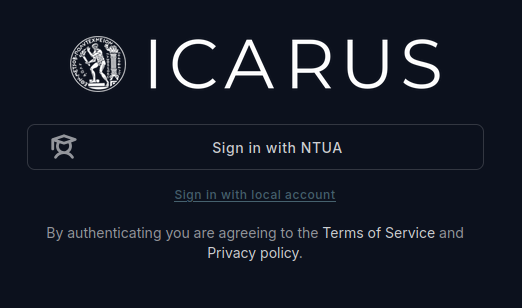
Open the ICARUS login page and select Sign in with NTUA. Use Sign in with local account only if you have been issued a separate local ICARUS account.
2. Authenticate at the NTUA IdP
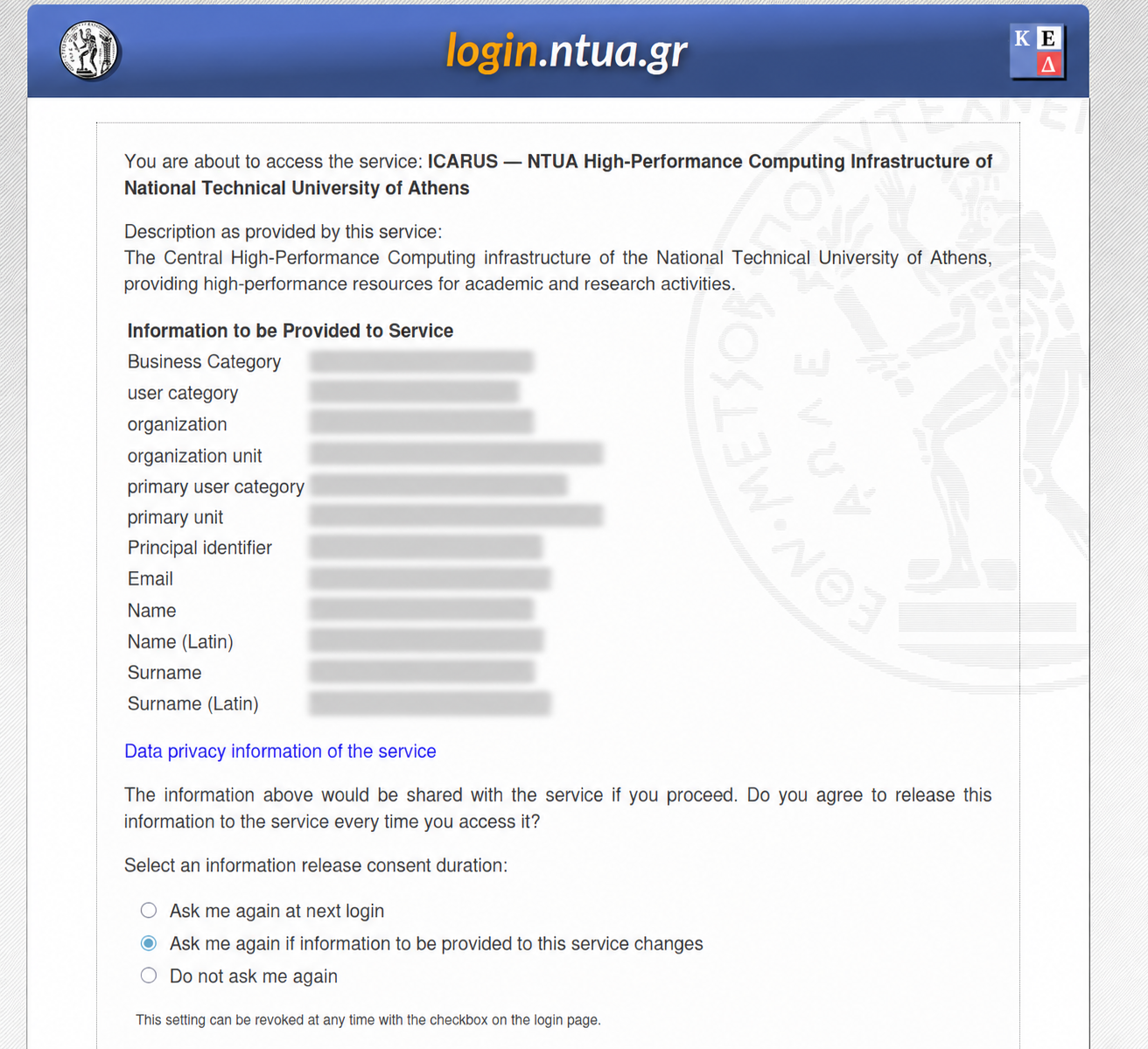
You will be directed to the NTUA sign-in service at login.ntua.gr. Sign in using your institutional account. An existing institutional session may allow you to continue without entering your credentials again.
3. Review the Information Release
The IdP may display the information it will share with ICARUS, such as your name, institutional identifier, email address, and affiliation. Review the service name and attributes, choose your preferred consent duration, and accept if you agree to release that information.
4. Review Your ICARUS Profile
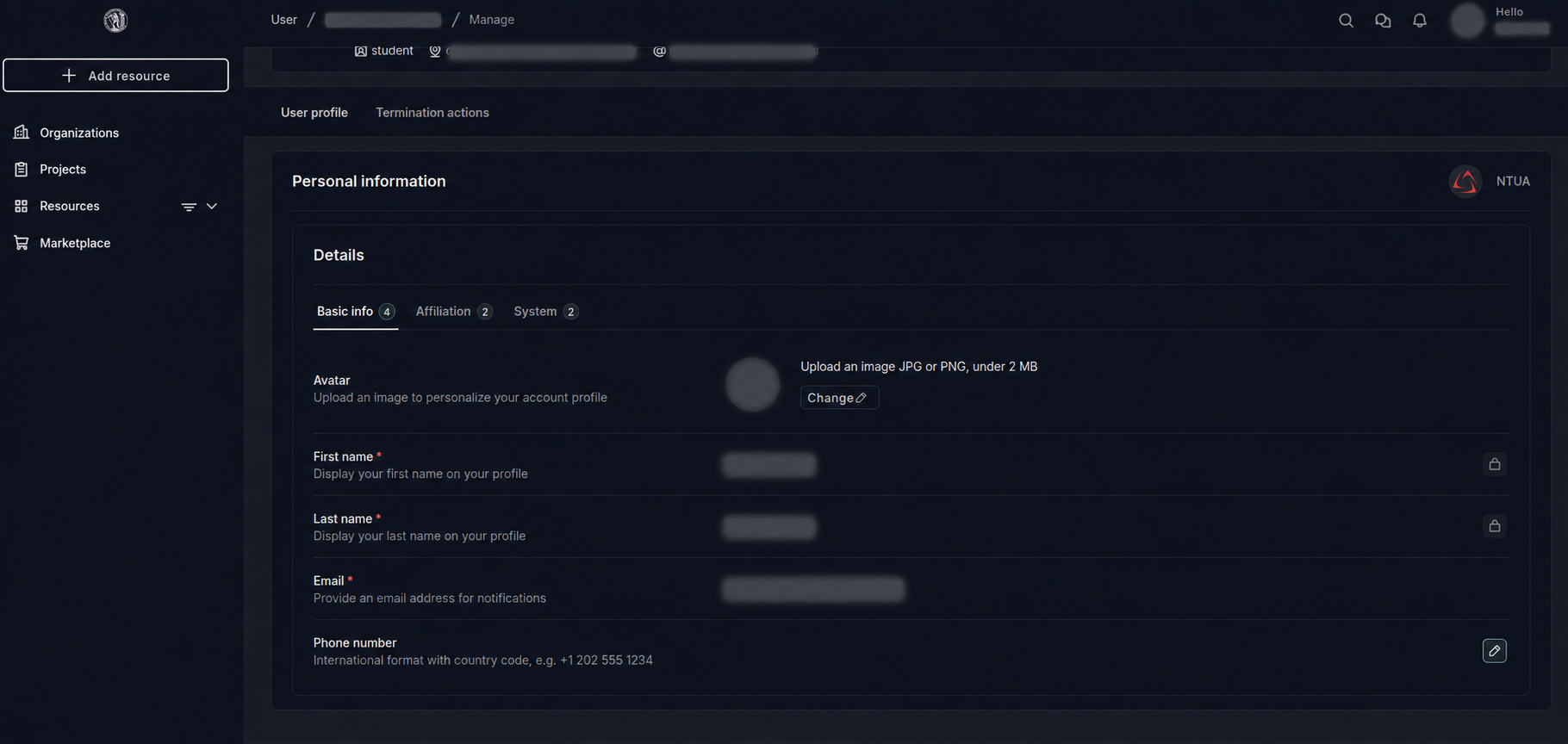
After successful authentication, you are redirected to your ICARUS profile. Check your name, institutional email, and affiliation. Contact support if an institutional attribute is incorrect.
Check Your Remote Account
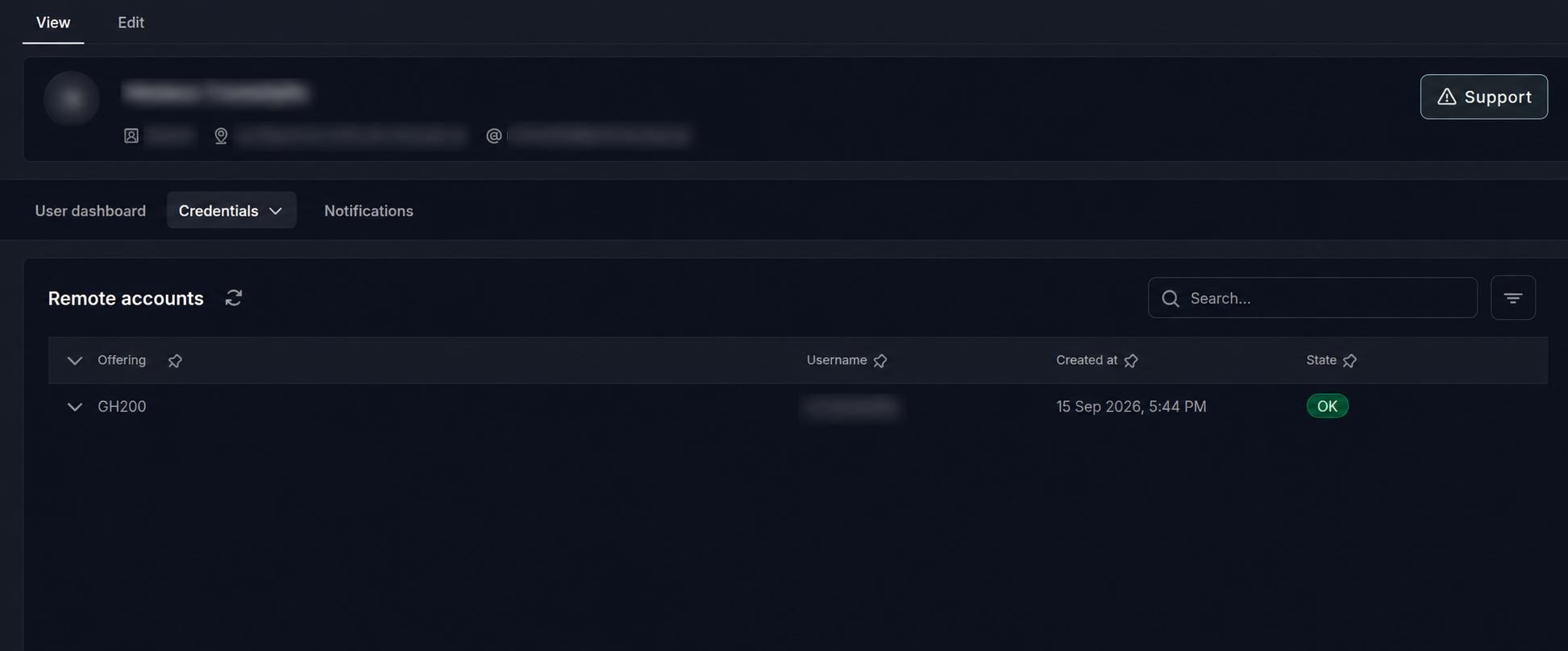
Open Profile → Credentials → Remote accounts. On your first visit, this list is normally empty: your HPC account has not yet been provisioned.
Once your account is provisioned, this overview shows the Offering, your HPC Username, when the account was created, and its State. The example below shows a GH200 account in state OK.
Use this Username for SSH login. Find your project’s SLURM account in View Your Projects.
If you have been notified that access is ready but the account is still missing or its state is not OK, contact support.