Upload Your SSH Public Key
Students and faculty who will connect to the HPC infrastructure and run jobs must add their own SSH public key to their ICARUS profile. Faculty who only administer projects in the dashboard do not need an SSH key.
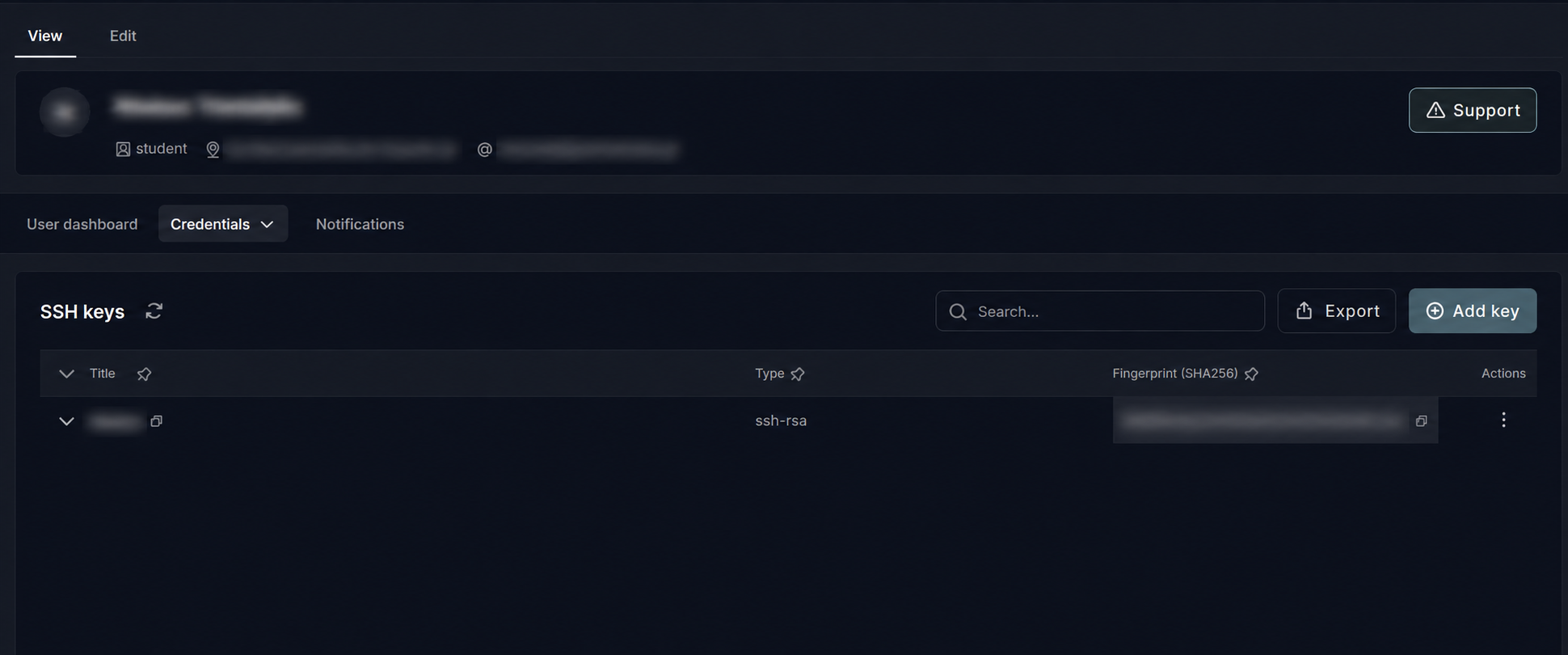
- First sign in to ICARUS, then open Profile → SSH keys.
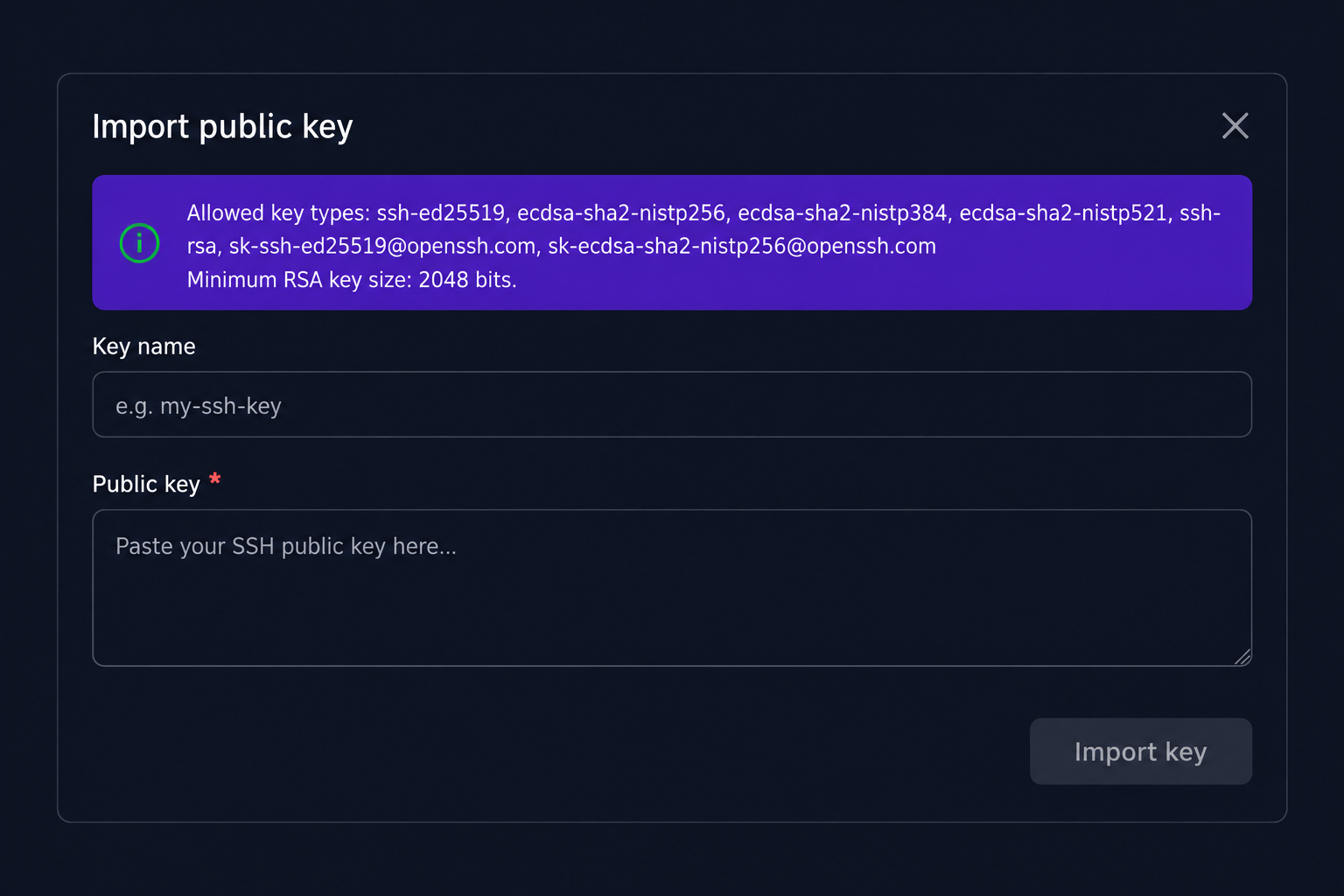
- Under Credentials → SSH keys, click Add key to open Import public key.
- Enter a descriptive Key name, such as
my-laptop. -
Paste the complete contents of your public-key file into Public key, as a single line. For an existing Ed25519 key, display it on your own computer with:
cat "$HOME/.ssh/id_ed25519.pub" -
Click Import key and check that the key appears in your SSH keys list.
Upload only the public key (the file ending in .pub). Keep the private key on your computer and never paste it into the portal or a support ticket. If you use another key filename, substitute its .pub path in the command above.
Adding a key does not approve a project or activate an allocation. Once your access is enabled, follow Login to connect.