Open a Support Ticket
Use the ICARUS dashboard to contact support.
1. Open the Support Form
For an allocation issue, open Projects → your project → Resources → HPC resource, select Support, then click Create.
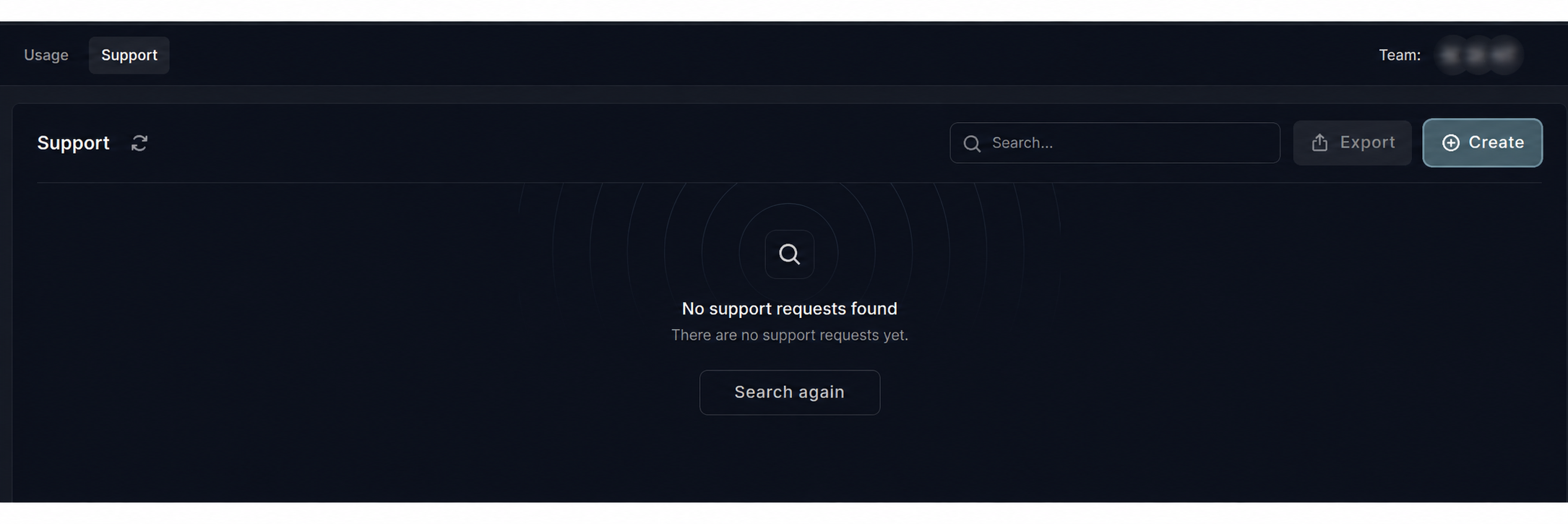
You can also click Support in the bottom-right corner of the dashboard, then choose Issues.

Choose Create issue to open the request form.
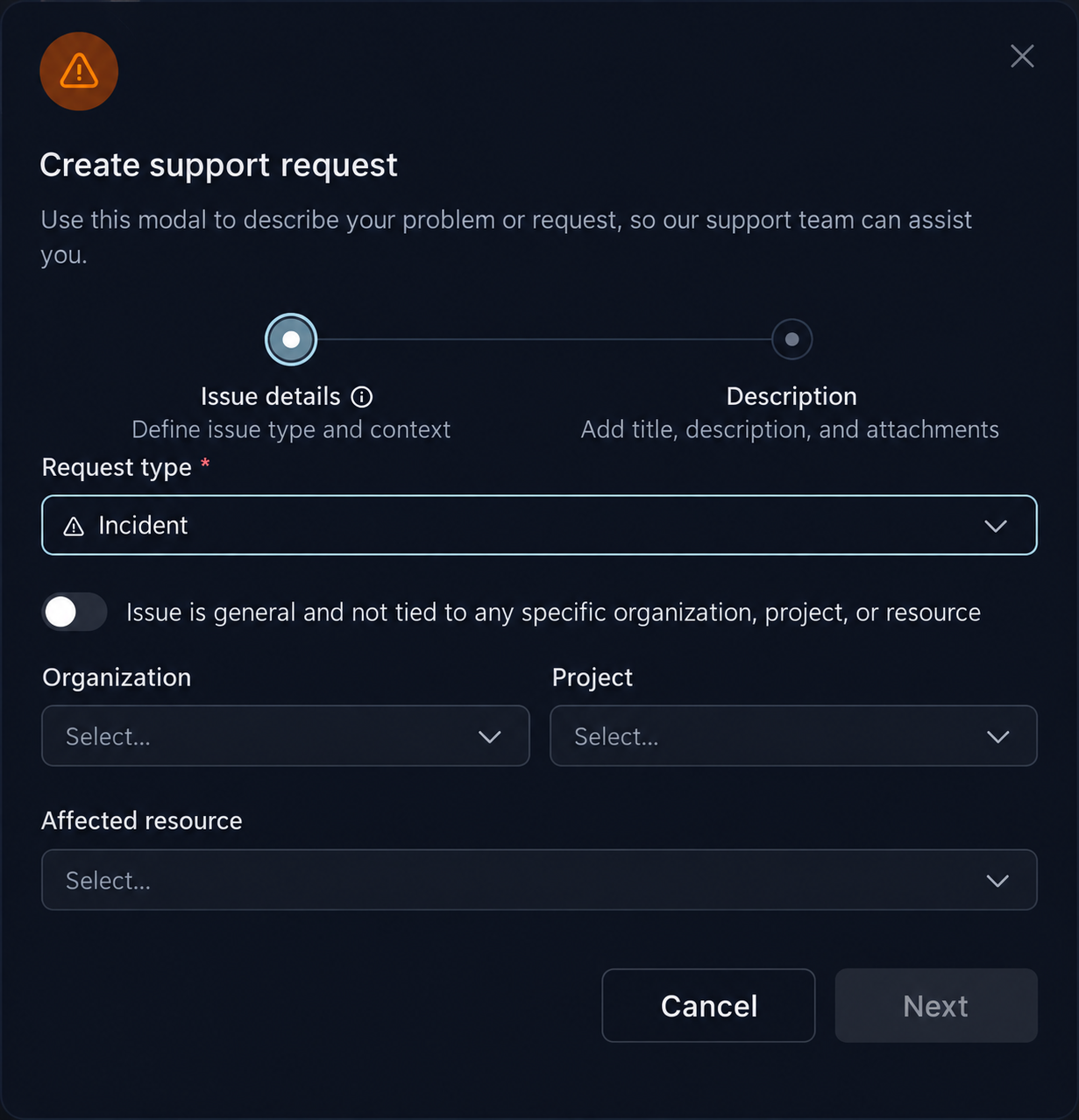
2. Choose a Request Type
| Type | When to use it | Example title |
|---|---|---|
| Incident | Something that should work is failing or unavailable. | “MPI job fails at startup — job 12345” |
| Question | You need an explanation or guidance. | “Which module should I use for an OpenMP application?” |
| Request | You need access, additional resources, or a service change. | “Additional 10,000 core-hours for project [name]” |
| Feedback | You want to suggest an improvement or share an observation. | “Suggestion for the file-transfer tutorial” |
3. Identify the Project or Resource
Select the Organization, Project, and Affected resource when applicable.
For general questions or a missing project, enable Issue is general and not tied to any specific organization, project, or resource. Click Next.
4. Describe the Issue
Add a short title, explain the issue, and attach relevant logs or screenshots. Include the information below where applicable:
Title: [Short description]
HPC username: [username]
Project / allocation: [name or identifier]
Job ID: [if applicable]
Date and time: [include time zone]
What I was trying to do: [expected result]
What happened: [exact error message]
Steps to reproduce: [commands or actions]
Software environment: [module list output]
Attachments: [job script and relevant log excerpt]
For a resource request, add the requested core-hours and GPU requirements, required dates, supervisor or PI, and a short explanation of the research or teaching activity. See estimating resources.
Review screenshots before attaching them. Remove passwords, private SSH keys, access tokens, and unrelated personal details. Include only the log sections needed to explain the issue.
5. Submit and Follow Up
Submit the form and use the same ticket for replies and updates.
If you cannot sign in, ask your supervisor or project manager to report the access problem on your behalf, including your institutional username and the error message. Do not share your password.