View Your Projects
View your projects, account details, team, and usage in the User Dashboard.
Find Your Projects
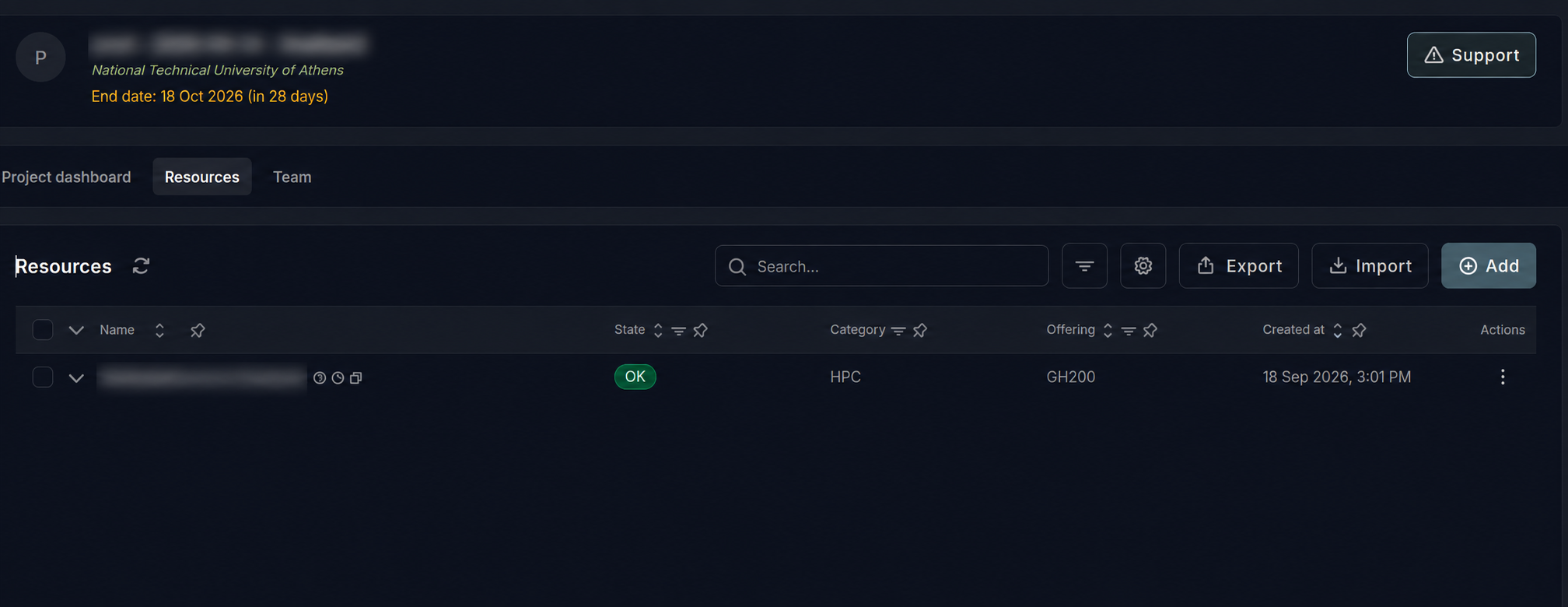
Click Projects to see all projects you are associated with, then open the one you want to use. Review its description, team, and end date. Open Resources to check the allocation and access period.
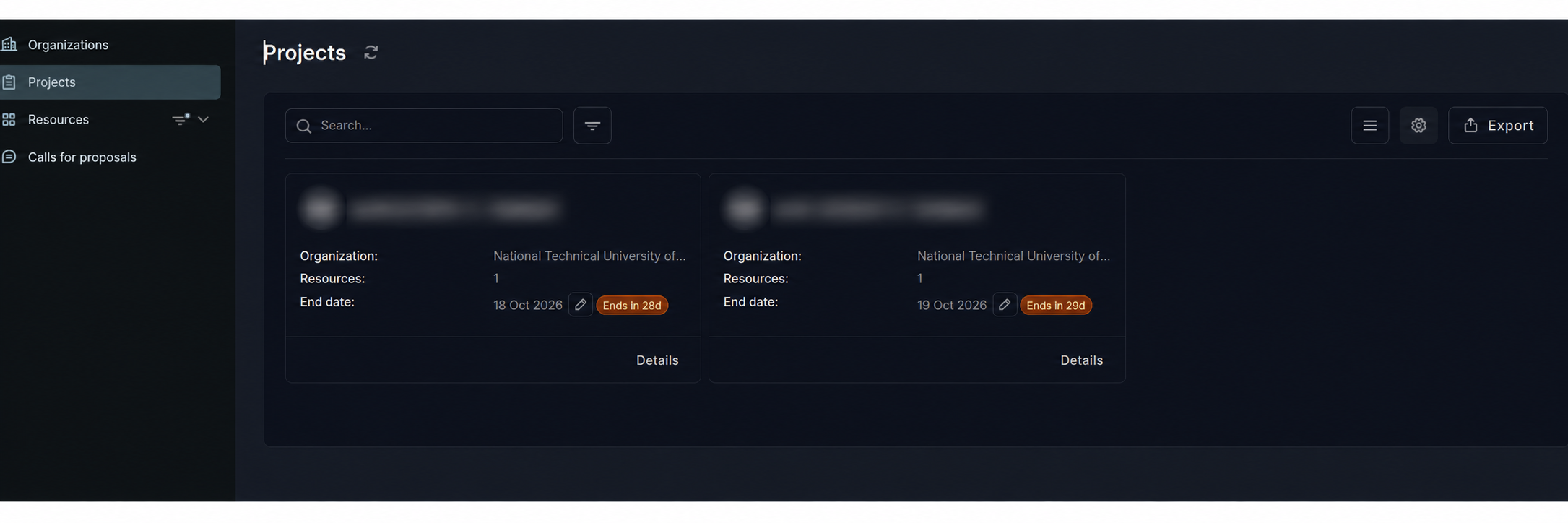
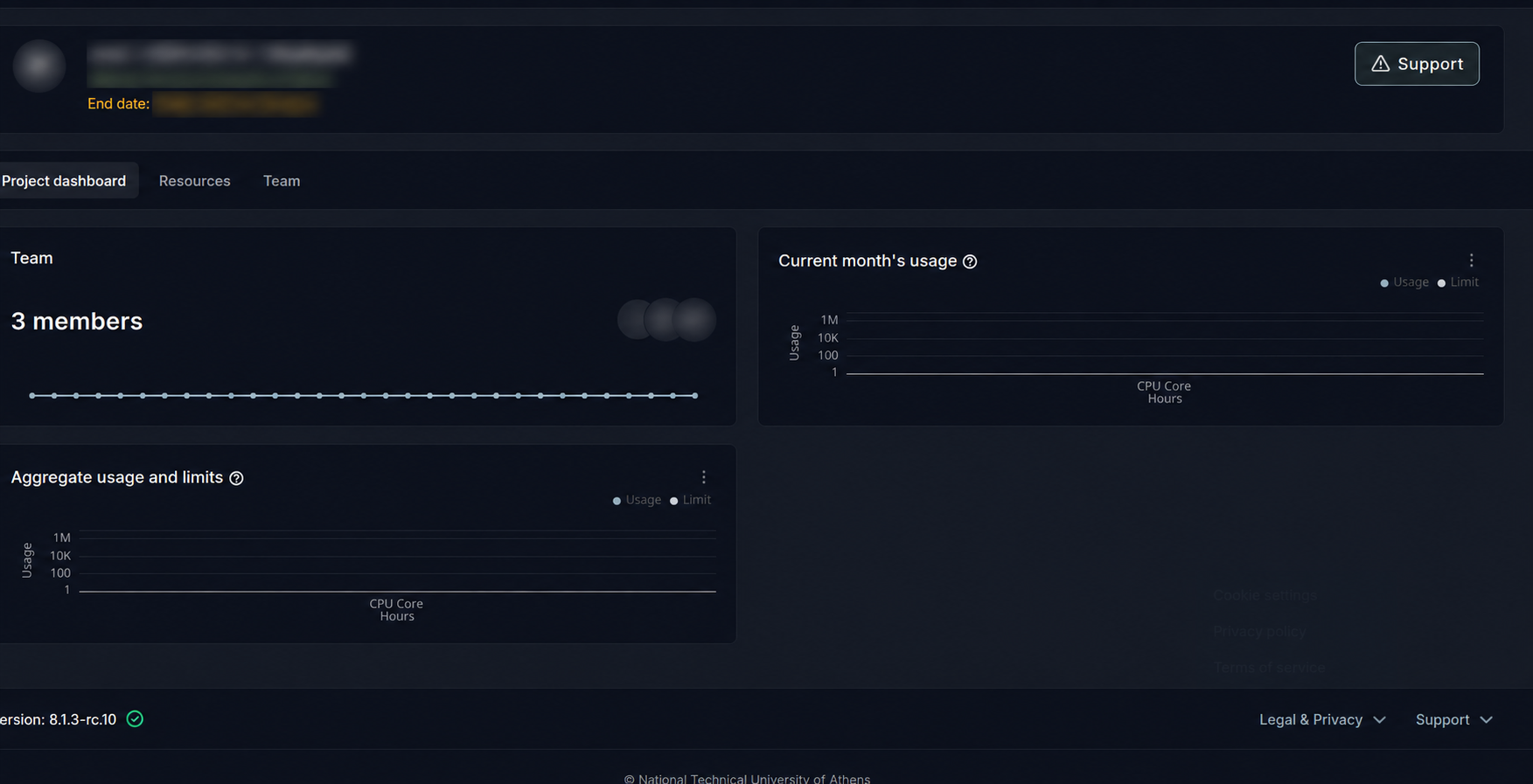
Registration alone does not create a project or grant compute access. If an expected project is missing or its allocation looks incorrect, ask your project admin or contact support.
Find Your HPC Username and Slurm Account
Open Resources and click the HPC resource name.
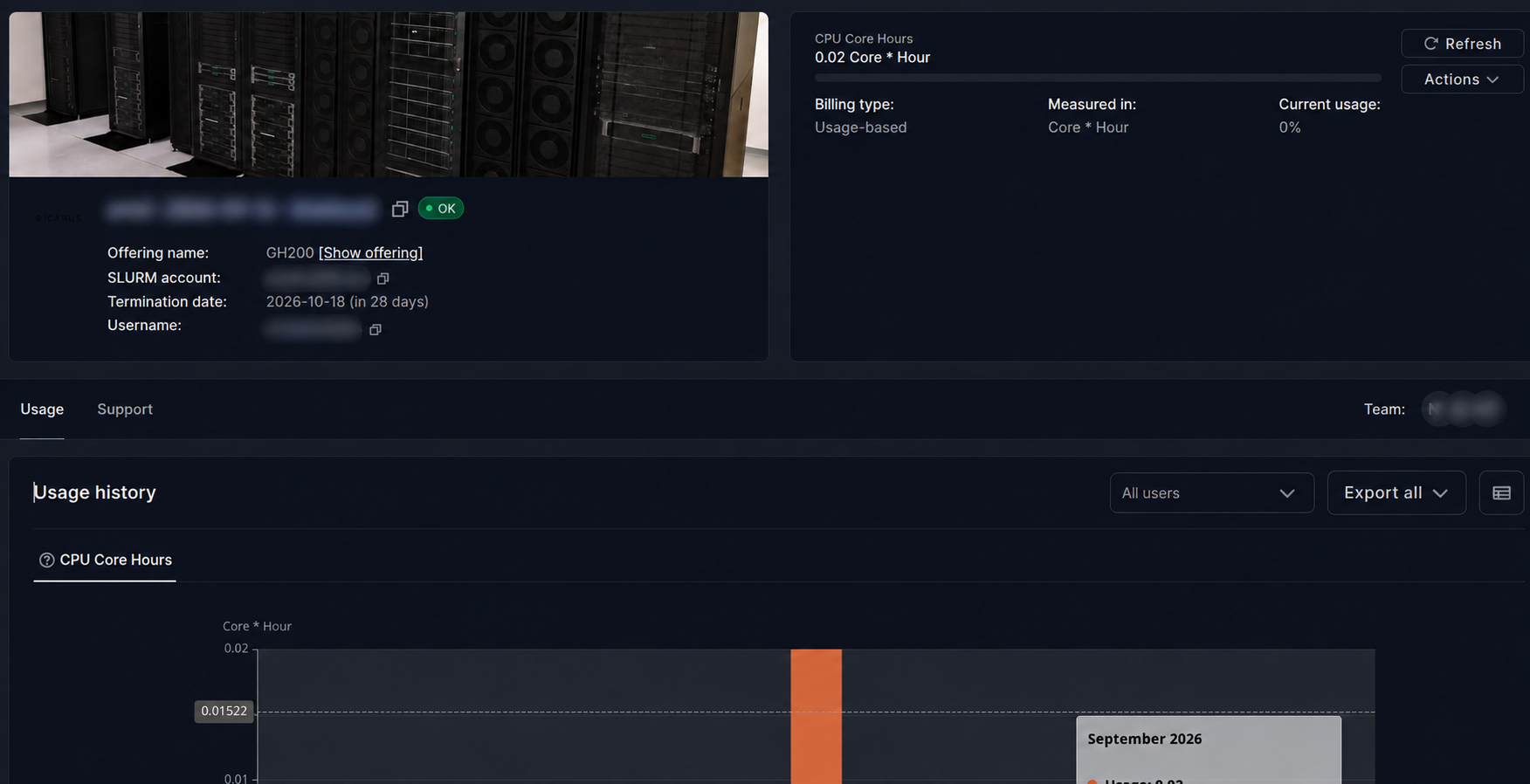
Use Username for SSH and SLURM account for job submission. With multiple projects, check the account of the project you want to charge. Your username and home-directory path stay the same. Copy your own values; screenshot identifiers are blurred.
View Your Team and Usage
Open your project's Team tab to see members and their roles. The Username column identifies portal users; use Username from the HPC allocation for SSH.
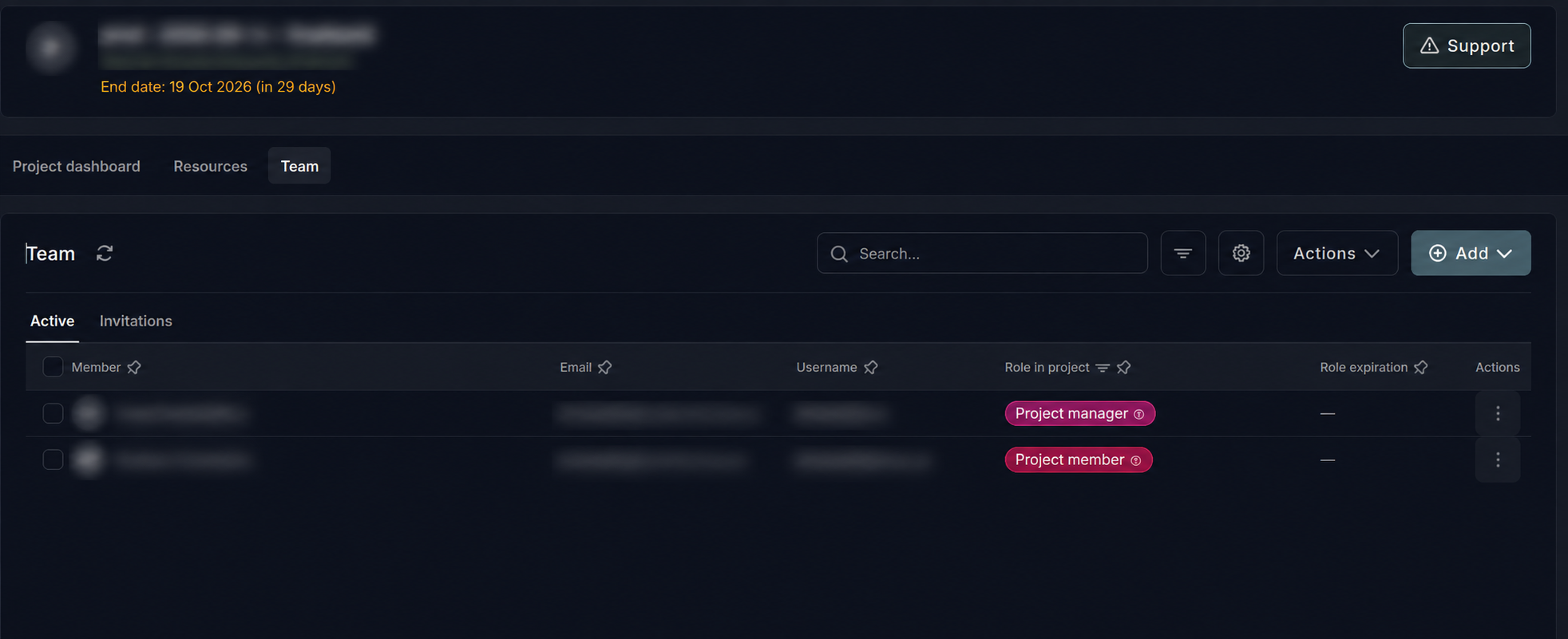
Members have read-only access to the team. Only admins, labelled Project manager, can add or remove members or change roles. See Project Administration.
To check consumption, open Resources → HPC resource → Usage. See Check Usage and Request an Extension for reports and extension requests.