Project Administration (Faculty)
Manage membership for an approved project in the User Dashboard.
Review Your Project
After your proposal is approved and the project is created, follow View Your Projects to view its allocation, account details, team, and usage.
Only project admins can add or remove members or change their roles. The dashboard calls this role Project manager. Project members can view the team but cannot administer it.
Add Users to the Project Team
Ask prospective members to sign in once before adding them.
Open your project and select Team to view existing members and their roles. Click Add to open the Add user dialog.
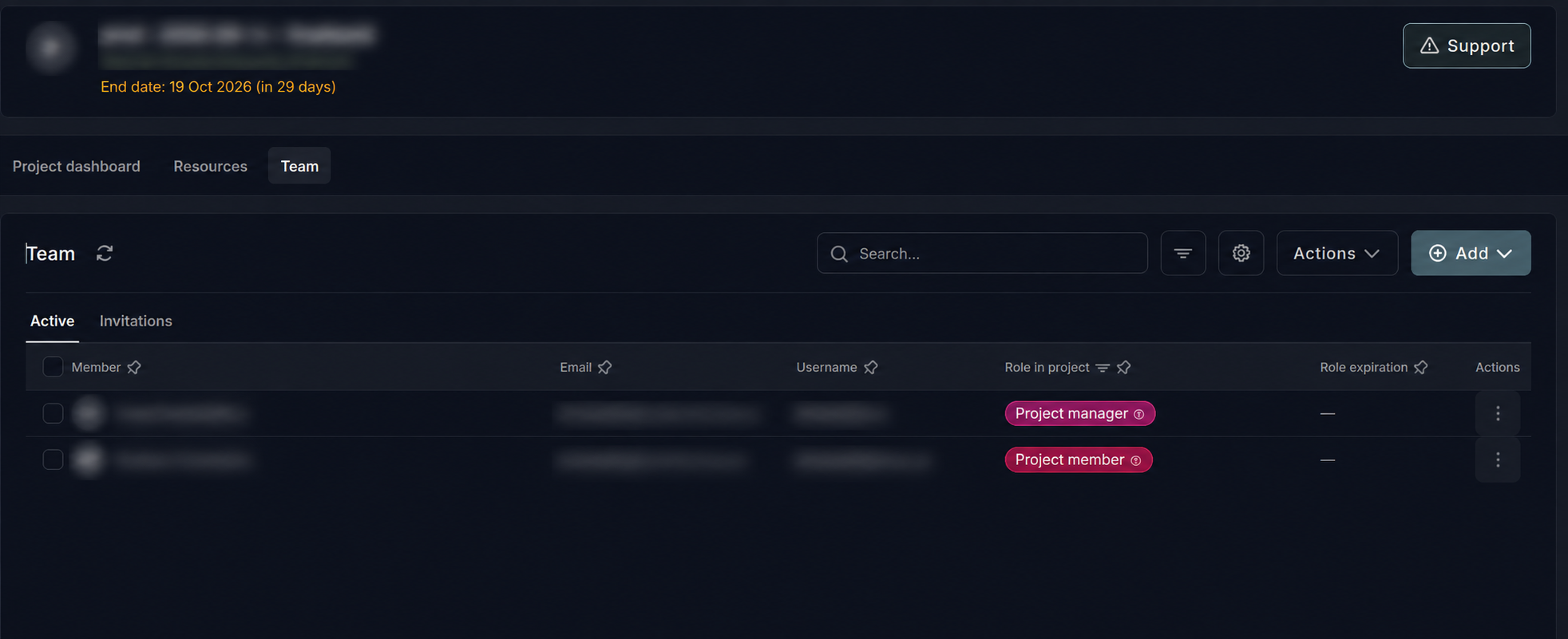
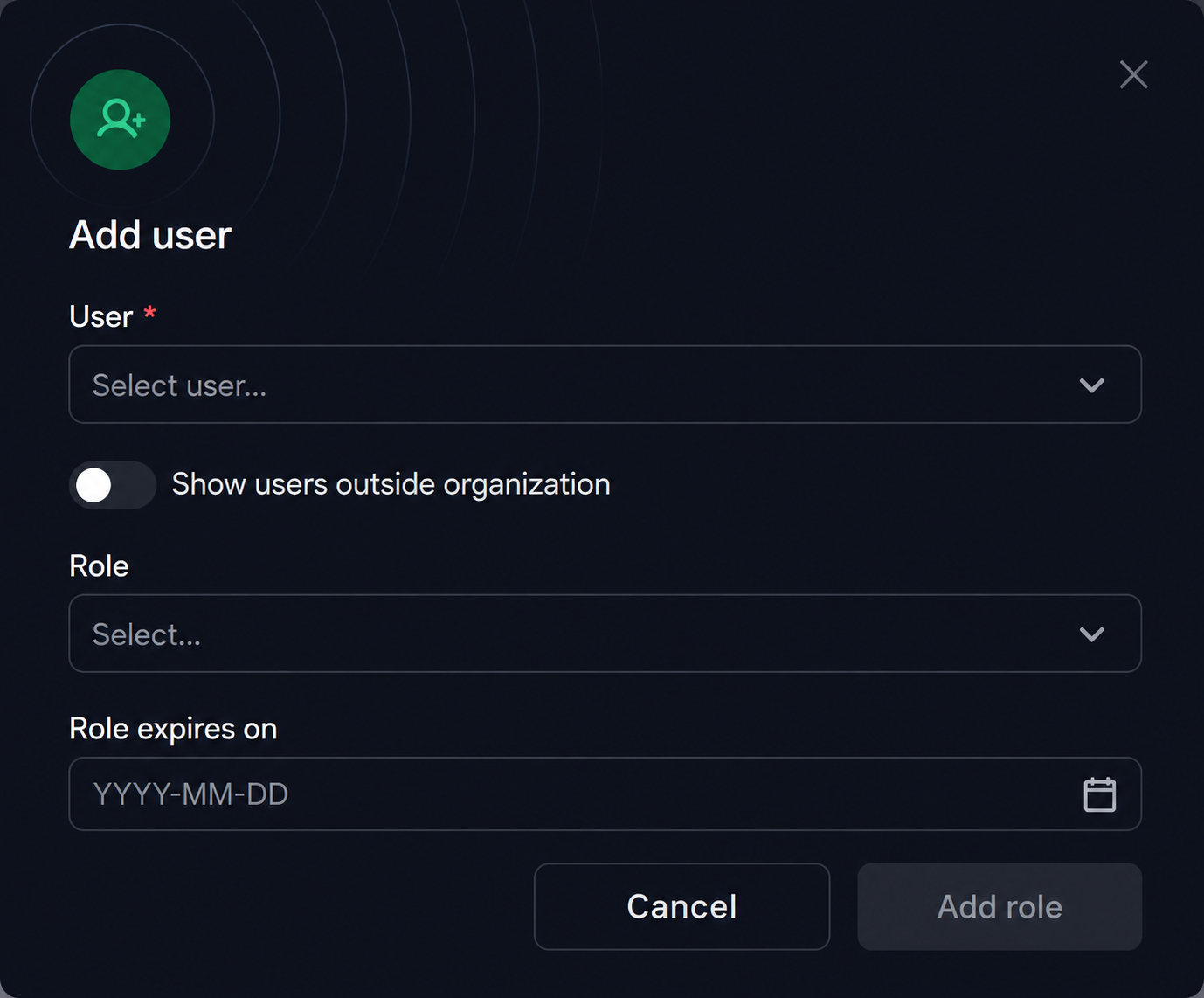
In the Add user dialog:
- Enable Show users outside organization (the switch circled below), then select the registered user in the User field.
- Select the appropriate Role and, if needed, set Role expires on within the project's access period.
- Click Add role. Repeat for each team member.
Appoint Another Project Manager
When adding a user, choose Project manager to let them add or remove members and manage roles.